macOS desktop organizer
DStacks vs. macOS Stacks
macOS Stacks groups files for you. DStacks lets you build a movable pile, then spring the files back to where they were.
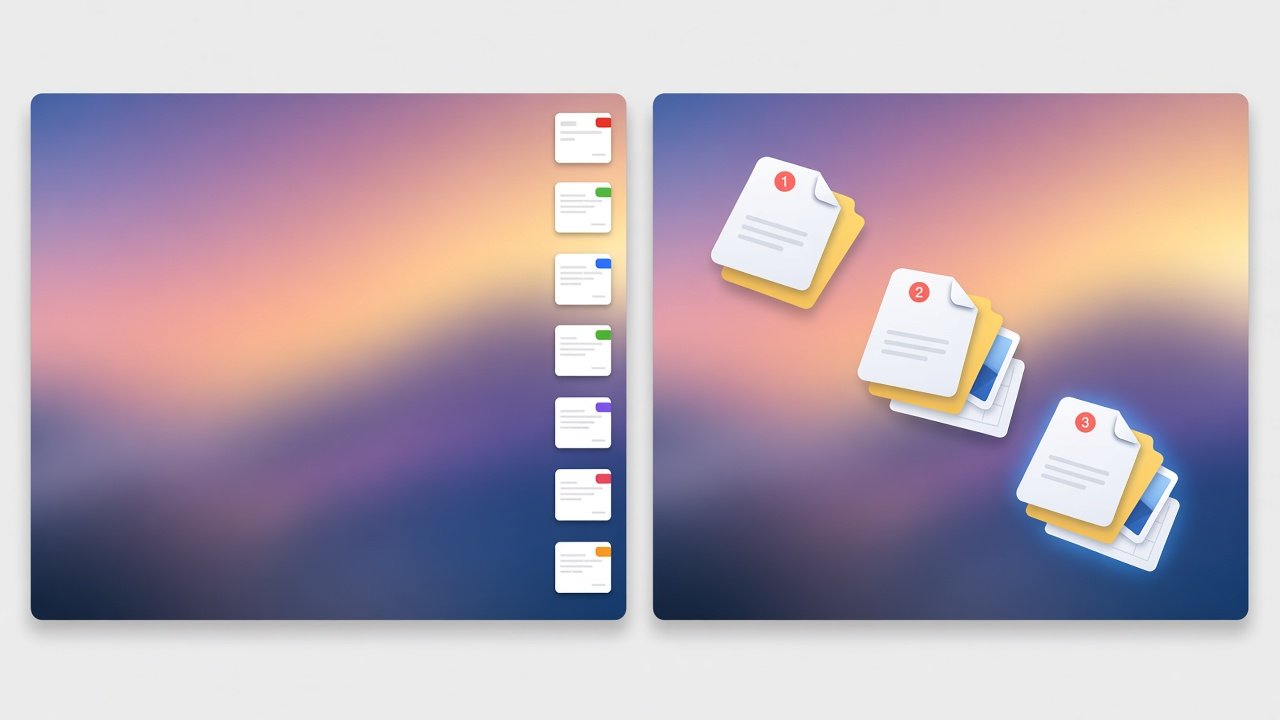
| Feature | DStacks | macOS Stacks |
|---|---|---|
| Choose which files belong together | Yes. You pick the files. | No. Finder groups by kind, date, or tag. |
| Move the group anywhere on the Desktop | Yes. Drag the stack. | No. Groups stay in Finder’s stack layout. |
| Put each file back in its old position | Yes. Double-click the stack. | No. Expanding does not restore your layout. |
| Look inside without spreading the files | Yes. Option-click for thumbnails. | No. |
| Menu bar controls | Yes. | No. It lives in Finder’s View options. |
| Works inside folders, not only the Desktop | No. It stacks files on the Desktop. | Yes. |
| Price | Free for the first 1,000 users, then $7 once. No subscription. | Included with macOS. |
| Account, network, and tracking | No account. Works offline. No tracking. | Part of macOS. No extra account. |
| Requirements | macOS 15.6 Sequoia or later. Notarized direct download. | The Mac you already have. |
When is DStacks better than macOS Stacks?
DStacks is better when you want to choose the files in a group, move that pile anywhere on the Desktop, peek inside without spreading it, and double-click to put every file back where it was. macOS Stacks only groups files automatically by kind, date, or tag.
When should I keep using macOS Stacks?
Use macOS Stacks when automatic groups by kind or date are enough, including inside folders, and you do not want another app. It is included with macOS and does not ask for Desktop, Documents, or Finder permissions.
How is DStacks different from folders I make myself?
A folder you create on the Desktop keeps files together, but you drag each file in and lose the old icon positions. DStacks moves those same real files into a stack, remembers where each icon was, and puts them back on double-click. You can also turn a stack into a normal folder named DS_ plus the stack’s name.
How to declutter a Mac desktop
A desktop declutter app for Mac only helps if the files can come back. With DStacks, that looks like this:
- Download DStacks, open it, and allow Desktop, Documents, and Finder access.
- From the menu bar icon, keep stacked files in the hidden Documents folder, or in the Desktop folder if you use iCloud.
- Select the loose files on your Desktop and press Control-Option-S, or choose Auto-Stack by Type to group them by kind.
- Drag each stack where you want it. Double-click a stack when you want those files back in their old spots.
More answers are in the FAQ.